When a teammate says ‘make the hook faster and move the price card up,’ the tempting move is to open a timeline and start nudging. That works once. It gets expensive when the same template has ten variants, reviewers leave notes asynchronously, or the final render happens somewhere other than the editor.
This guide shows how to turn review notes into small, safe revisions with VideoFlow. The useful boundary is VideoJSON: capture feedback, change structured video data, preview the exact revision, then render only the approved version. You need a VideoFlow project, a place to store JSON revisions, and either the DOM preview or the React editor.
1. Keep one VideoJSON file as the review target
Start by compiling your TypeScript template to VideoJSON, then treat that JSON as the source a reviewer is approving. VideoFlow’s core documentation covers the builder and compilation flow. The important operational rule is simpler: do not ask reviewers to approve a one-off MP4 that cannot be traced back to its inputs.
For a product video, the JSON should carry the editable facts: media URLs, text, captions, timing, colors, layer order, and transitions. Keep a stable ID on each meaningful layer so a comment such as ‘shorten the opening card’ has a precise destination.
import VideoFlow from "@videoflow/core";

const $ = new VideoFlow({ name: "summer-sale", width: 1080, height: 1920, fps: 30 });
// Add named layers for the hook, product shot, price card, and CTA.
const videoJSON = await $.compile();
Save that output as a revisioned record, such as campaigns/summer-sale/revisions/001.json. Store the review URL beside it. This is the same idea behind a reviewable JSON-to-video pipeline, but the practical win is that every comment points to data you can inspect and diff.
2. Translate feedback into a small change request
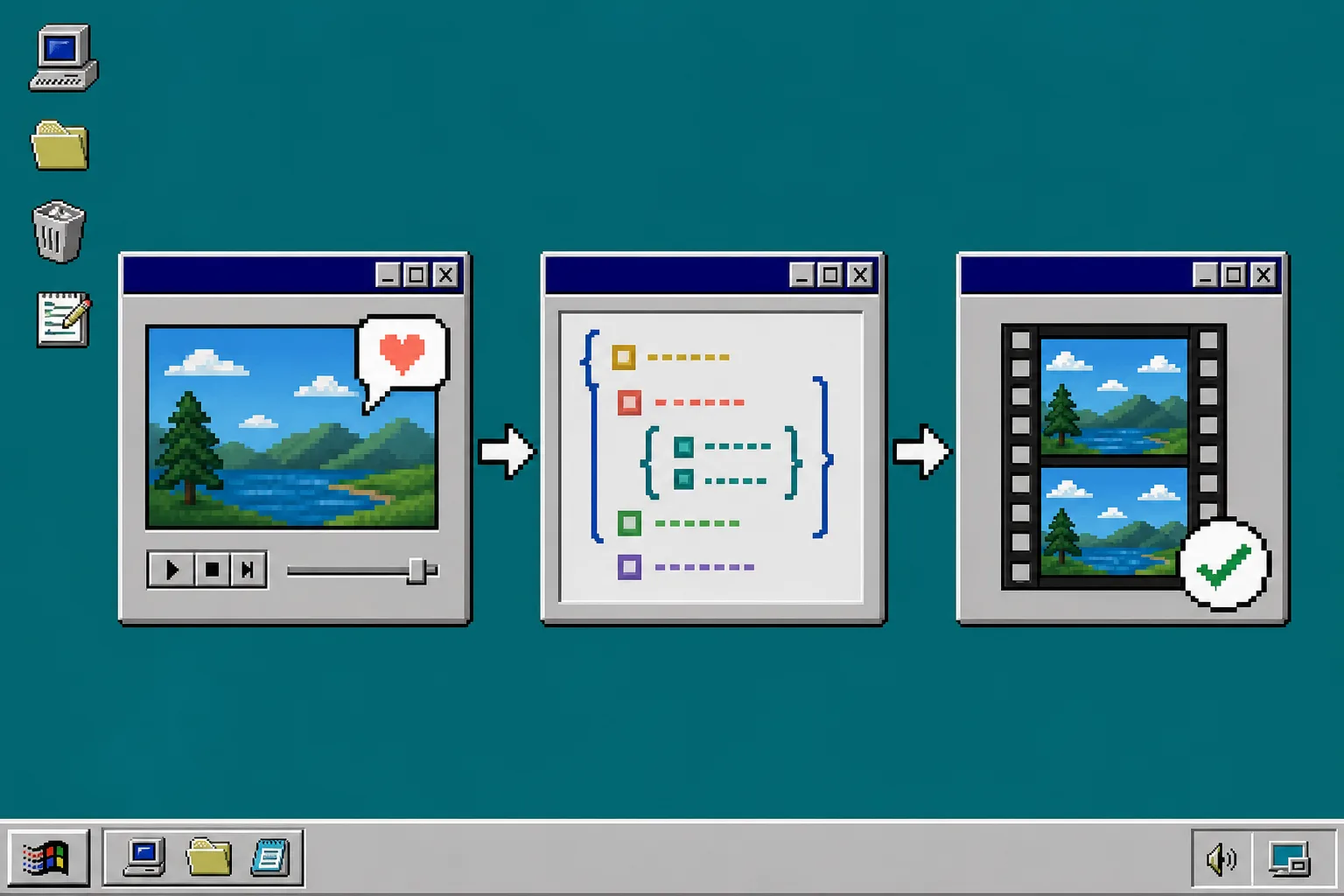
Do not paste a long comment directly into a renderer job. First reduce it to a bounded change request with four fields:
- Target: the layer or scene ID.
- Intent: what should change and why.
- Allowed fields: for example
start,duration,text, ormedia.src. - Acceptance check: what the reviewer should see in the next preview.
For example, ‘the benefit arrives too late’ becomes: target hook-benefit; change its start time from 1.2 seconds to 0.6 seconds; do not alter the product image; accept when the benefit appears before the first cut. This gives a developer—or an AI-assisted workflow—a constrained request instead of a vague editing task.
Keep copy edits separate from structural changes. A caption correction is low risk. Reordering scenes, replacing media, or changing audio deserves its own revision. Small revisions are easier to reverse and easier for a second reviewer to understand.
3. Apply the revision to JSON, not to a mystery export
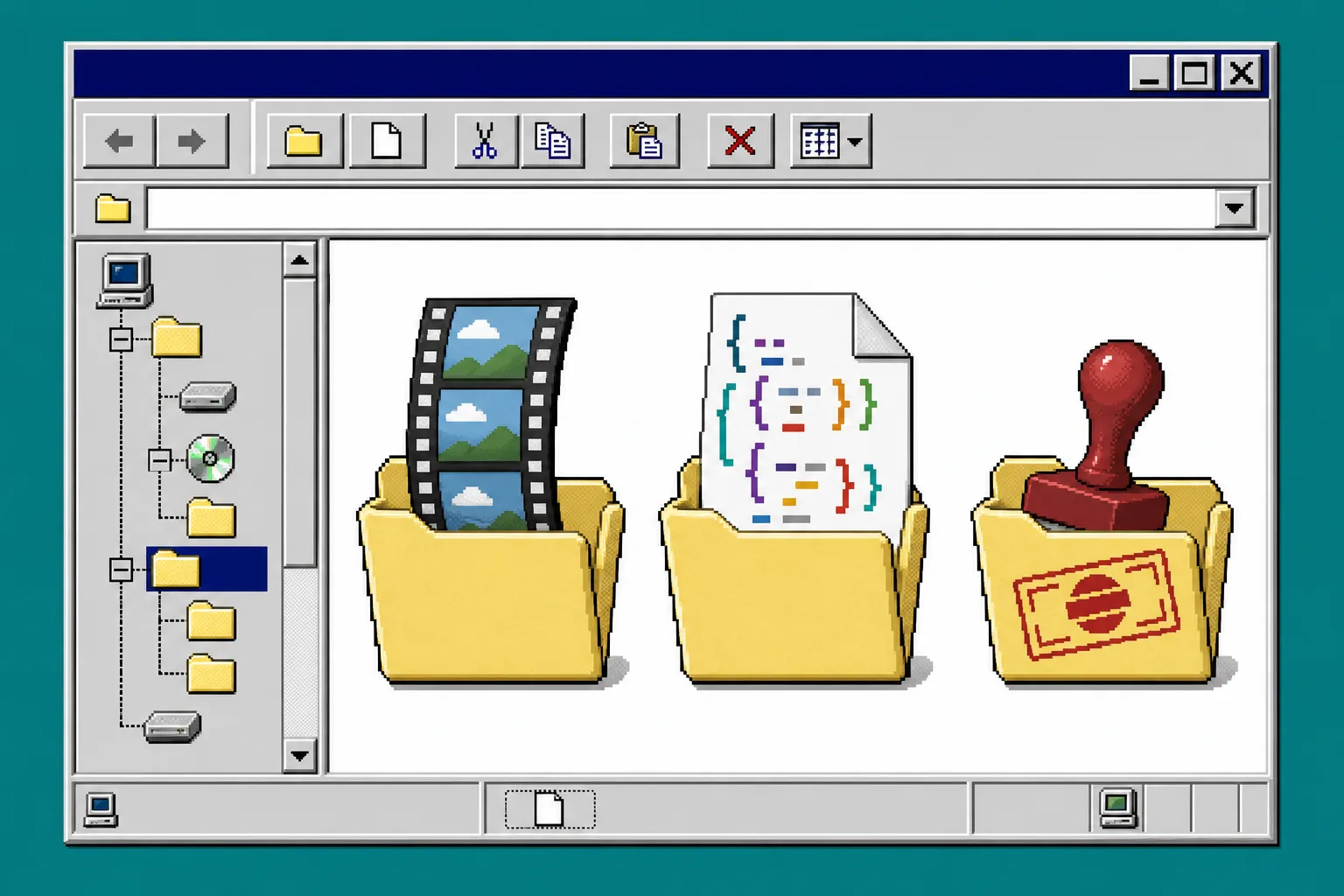
Create a new revision file rather than overwriting the approved one. The exact storage system is your choice, but the rule should be obvious in Git history: one feedback batch produces one JSON diff.
revisions/001.json  # approved baseline
revisions/002.json  # price card moved earlier
revisions/003.json  # localized French copy
That structure is particularly helpful when the same campaign needs different languages, product prices, or channel-specific cuts. You retain the template and only swap the fields that actually vary. If your team already uses merge requests, the same pattern fits naturally with a merge-request-friendly VideoFlow workflow: reviewers can inspect the JSON diff and the preview before the renderer consumes it.
4. Preview the changed JSON before you spend render time
Use VideoFlow’s DOM renderer or its React video editor to load the candidate JSON. The preview is where a reviewer checks timing, line breaks, crop, audio alignment, and the effect of a changed transition. The React editor is useful when the reviewer should be allowed to make constrained adjustments themselves; save its onChange result back as the next JSON revision.
Your preview checklist should be short and repeatable:
- Does the change address the written note?
- Did unrelated layers stay in place?
- Does the text fit at the target aspect ratio?
- Are media URLs and captions still valid?
- Is the candidate revision clearly identified?
If the answer is no, return to the JSON change rather than making a hidden correction in a separate editor. For a fuller setup sequence, see how to build a Video Review workflow with VideoFlow.
5. Send only approved revisions to the right renderer
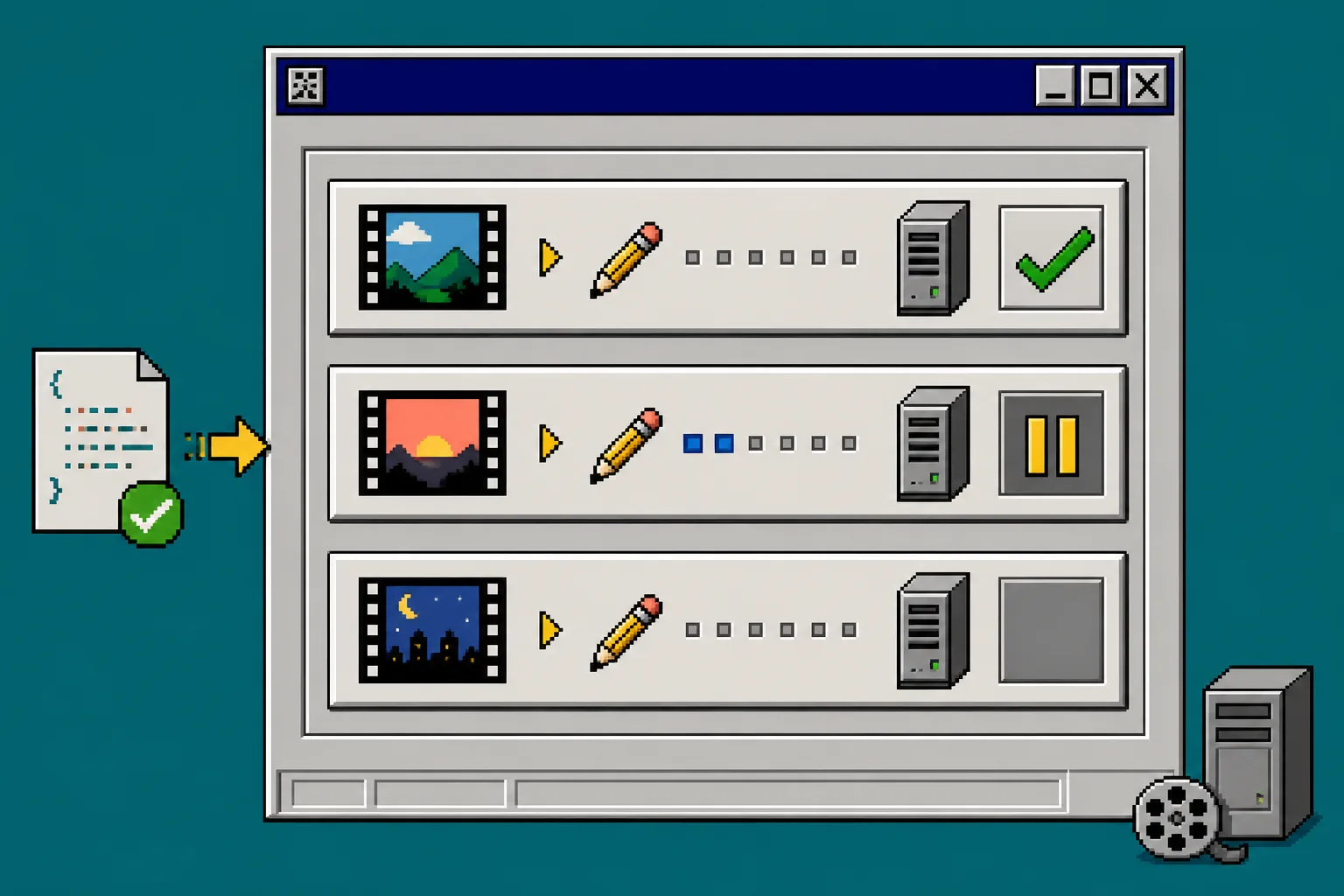
Once the preview is approved, select a renderer according to the job. Use the browser renderer for a user-triggered export when keeping the source on the client matters. Use the server renderer for queues, scheduled jobs, or larger batches. The renderer docs describe both paths, and this renderer selection guide explains the trade-off in a practical way.
Pass the immutable revision ID into the render job. A job should say summer-sale/revision-003, not merely summer-sale. That makes a failed export reproducible and prevents an approved MP4 from silently using a newer draft.
Troubleshooting: three feedback loops that usually fail
Reviewers keep commenting on old previews. Put the revision number in the preview route or review panel, and archive links after approval.
A small copy edit changes the whole composition. Add a preview check for wrapping and safe areas. Text length is data, but it still affects layout.
Renders disagree with previews. Use the same VideoJSON artifact for both. Then test the renderer you plan to use for final delivery before the approval round, especially when fonts, media, or effects are involved.
Recap
The safe path is: compile a template to VideoJSON, convert notes into a bounded change request, save a new revision, preview it, and render only after approval. That keeps feedback visible, revisions reversible, and final output traceable.
Start with one template this week. Compile it with VideoFlow, give its key layers stable IDs, and make the next review comment produce a JSON diff instead of a mystery timeline edit.