How to Reconstruct Saved Email Conversations From EML and MSG Files
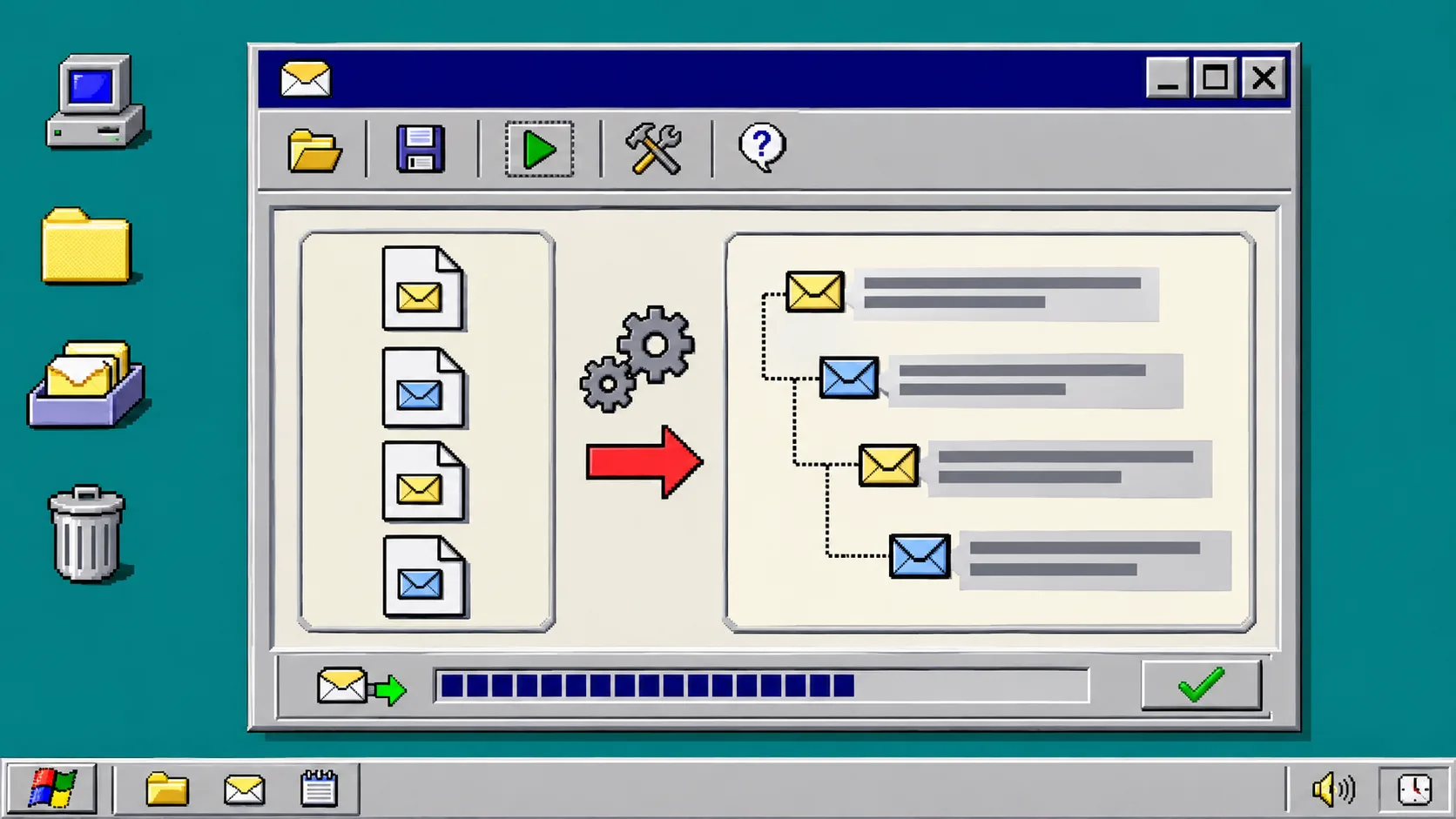
If you have a folder of exported .eml messages, Outlook .msg files, or an .mbox archive, use Email Thread Reconstructor to group replies back into conversations before you review or archive them. Start with header-based matching; use its subject fallback only when the thread has gaps and you can check the suggested merge. The files stay in the browser, so this is a useful first pass for support exports and mailbox handoffs that should not go to a random converter.
You need the saved message files and a modern browser. This guide is for organizing a working copy, not proving legal authenticity: preserve the original export separately, especially when a record may be evidence.
1. Gather the message files without renaming the originals
Create a new working folder and copy the messages into it. Put related .eml, .msg, and .mbox files together if they may belong to the same discussion. Do not edit the originals while you are still deciding what the thread means.
The tool accepts EML, MSG, MBOX, MBX, and text files, and identifies supported mail formats from file contents rather than only the filename. That is helpful when a ticket system gave an exported message an unhelpful extension. If you only have a large MBOX, you can also inspect it first with Email Archive Viewer.
What you should see: one working folder containing the saved messages you want to compare.
2. Load the files into Email Thread Reconstructor
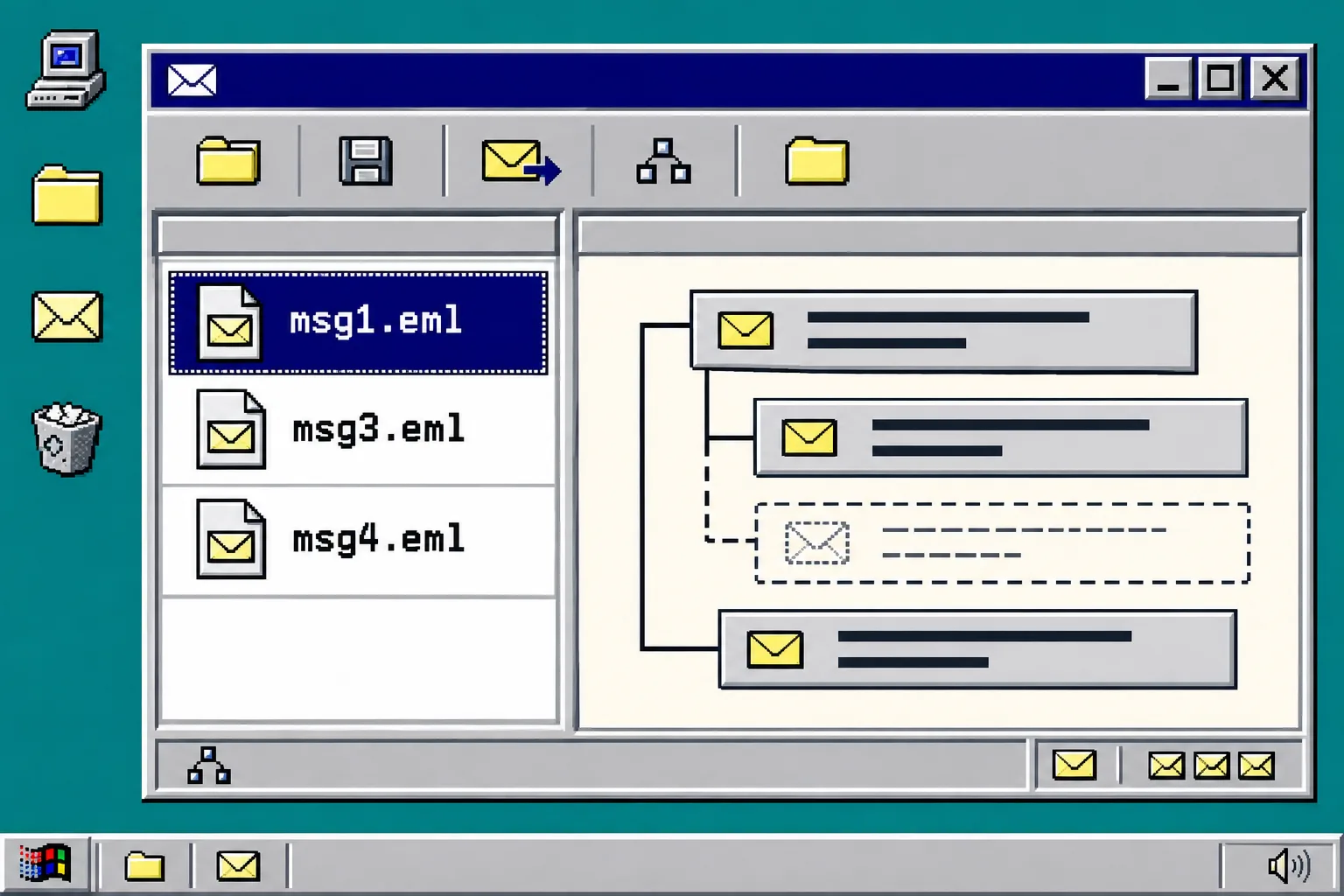
Open Email Thread Reconstructor, then drag the working folder’s files into the drop area or choose them with the file picker. You may mix individual EML and MSG files with an MBOX archive.
The tool builds the conversation tree from the In-Reply-To and References headers. Those fields carry the message identifiers that email clients use to show a reply beneath the message it answered. A missing parent is not silently hidden: it appears as a gap, which is a useful signal that your export is incomplete.
What you should see: separate mail files grouped beneath a conversation root, with any missing parent shown as a gap instead of a guessed reply.
3. Keep subject fallback off for the first review
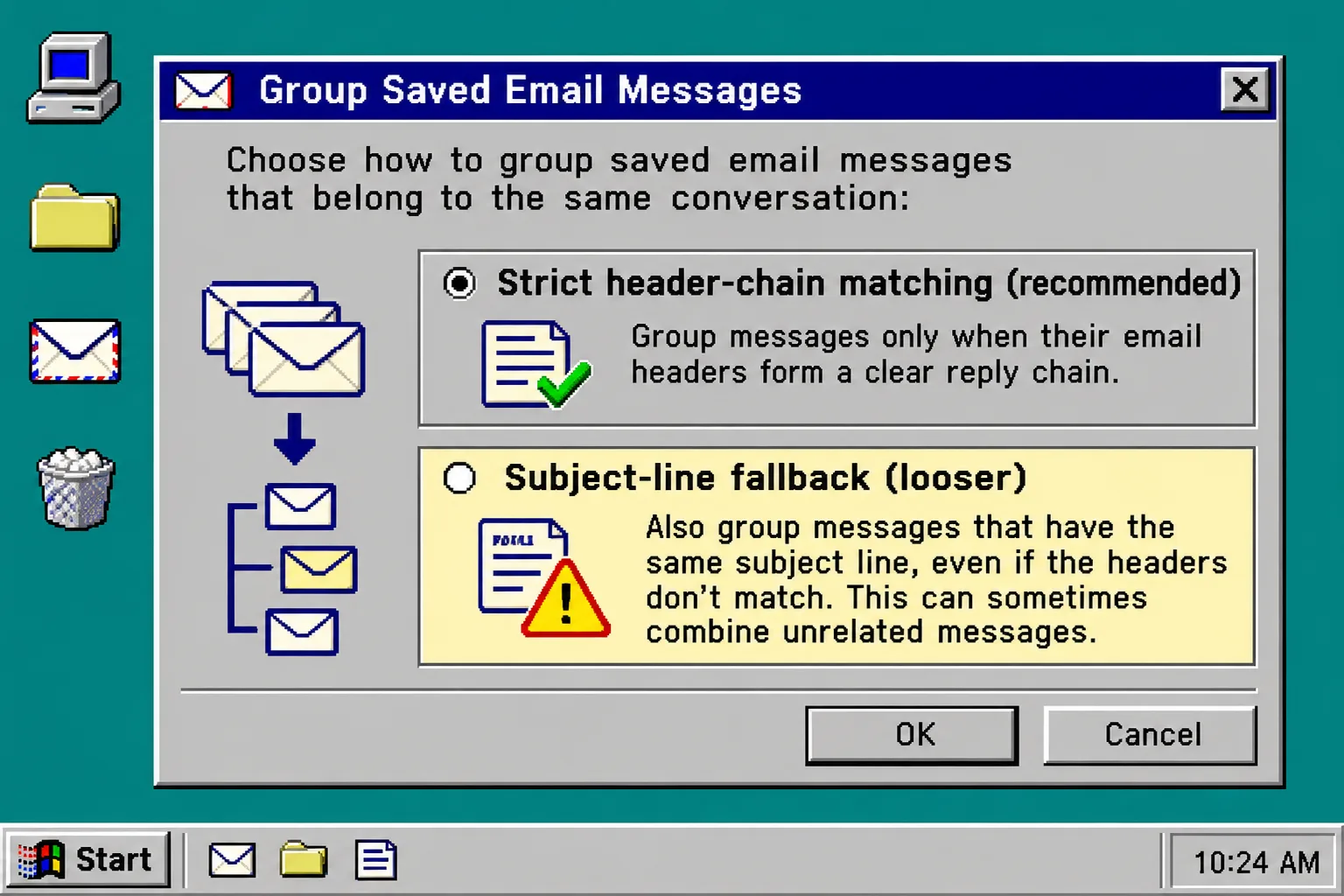
The page offers a Subject fallback switch. Leave it off for your first look. Strict header matching is safer because two unrelated emails can share a subject such as “Re: meeting” or “Invoice.”
Turn the fallback on only when the obvious replies have lost their References or In-Reply-To headers, which can happen after some client or webmail exports. Then compare the new tree with the strict result. The tool reports how many roots the fallback absorbed, so a large number is a reason to stop and inspect rather than trust the grouping.
| Situation | Best choice | Why |
|---|---|---|
| You need a defensible review of a small export | Header matching only | It relies on the reply chain in the files. |
| A few mobile replies are sitting alone | Try subject fallback, then compare | It can recover replies with stripped headers. |
| Many generic subjects merge together | Turn fallback off | Similar subject lines are not proof of one conversation. |
| A root has a blank parent node | Keep the gap visible | It tells you a referenced message is missing. |
4. Check the thread before you act on it
Open the conversation that matters and use this short receipt:
- Check that the earliest visible message makes sense as the root.
- Look for a missing-message gap between a question and its reply.
- Compare senders, recipients, and dates around any merge made by subject fallback.
- Treat a generic subject as a clue, not a connection.
- Keep the original files if you need to return to the source later.
For a single suspicious message, Email File Viewer can show its headers, rendered body, MIME structure, and attachments without a mail client. Its remote images are off by default, which is useful when opening an old marketing email or an unknown message could otherwise contact the sender.
5. Export or hand off only what the tree supports
Once the tree looks right, decide what the next person needs. If they need the original messages, retain the source EML or MSG files alongside your review notes. If they need a readable, searchable exhibit rather than raw mail files, EML to PDF Batch Converter can create one PDF per message or a merged PDF.
Be precise about that choice. A PDF rendering is a readable record, not a byte-for-byte replacement for the original message. If you need attachments too, use Email Attachment Extractor; it separates embedded signature artwork from files that are not referenced by the HTML body and produces a ZIP with a manifest.
What you should see: a clean conversation tree plus a clear decision about whether the handoff needs source files, a readable PDF, or extracted attachments.
Troubleshooting
The messages do not group
Check whether they are actually replies to one another. If the headers are missing, try subject fallback once and compare its merge count. Do not force a grouping just because the subject is similar.
The tree has an empty node
That is usually a missing parent message, not a broken viewer. Search the original export, the MBOX archive, or the mailbox source for the referenced message before presenting the thread as complete.
The file will not load
Confirm that it is an EML, MSG, or MBOX-style export. For a large mailbox dump, start with Email Archive Viewer to identify the relevant messages, then return to threading.
I need to assess a delivery path or authentication result
Threading describes how messages relate; it does not independently validate a sender. Use Email Header Analyzer to read the Received chain and the SPF, DKIM, and DMARC results recorded by the receiving server.
Keep the review simple
Reconstructing a saved conversation is mostly about refusing to guess. Load the export, begin with the headers, use subject matching only as a reviewable fallback, and leave gaps visible until you find their source. Start with Email Thread Reconstructor, then keep the original files next to whatever readable handoff you create.
For related browser-first workflow checks, see how to extract attachments from saved email files, how to inspect an ICS calendar file before importing it, how to inspect PDF form fields before sending a fillable PDF, and how to audit Excel formulas before a supplier spreadsheet import.