How to Make a Shopify UGC Video From a Product Facts Card
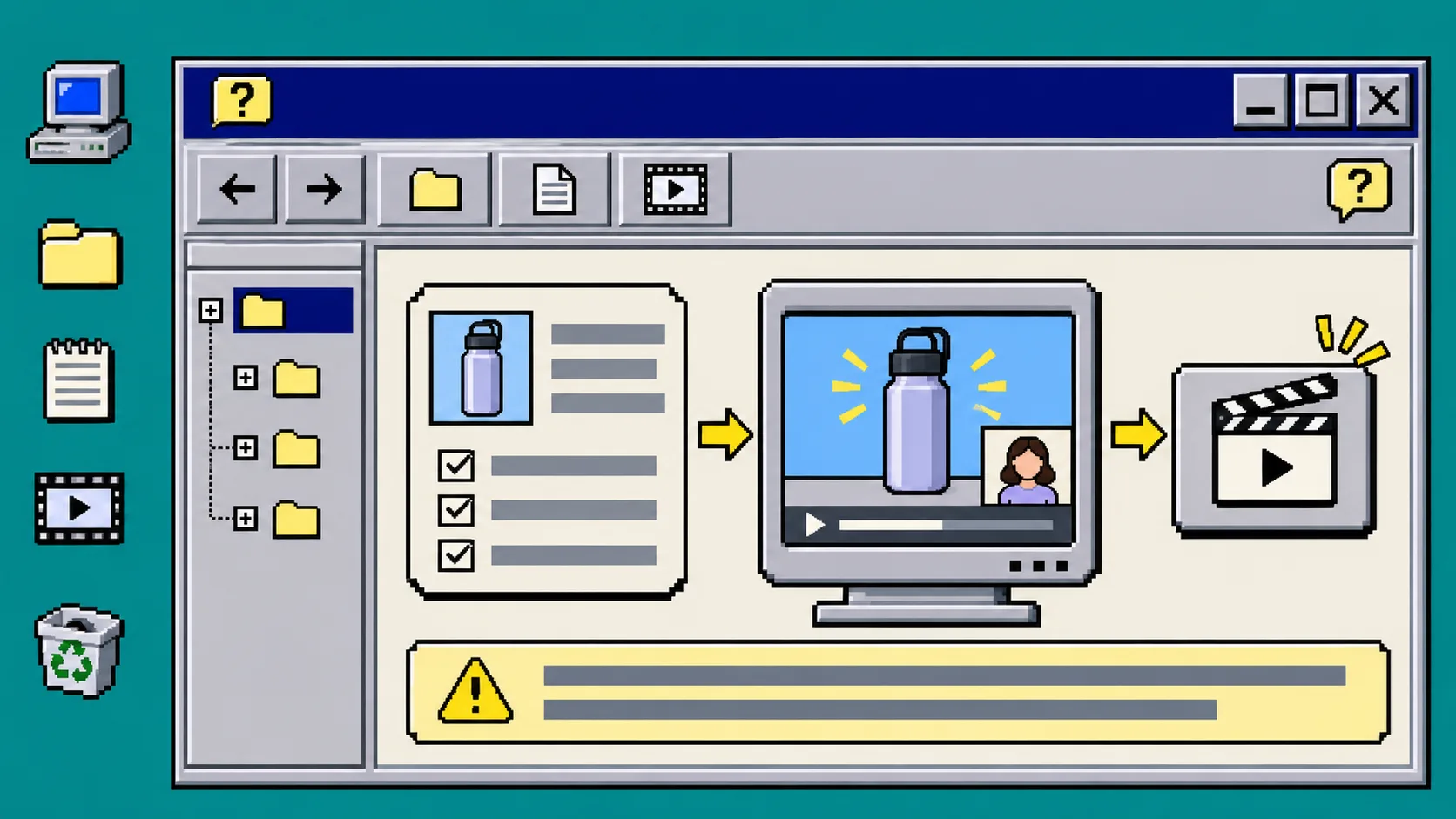
You can make a useful Shopify UGC-style video without inventing a testimonial or filming a new creator: start with a small card of product facts you can prove, then give the video one job. This guide uses Supra UGC Maker to turn that card into a short, reviewable video for an ad, product page, or email. You need a Shopify product, its current product-page facts, and permission to use any assets you upload.
A facts card is deliberately less exciting than a creative brief. That is its advantage. It prevents a generated script from quietly turning a material, compatibility note, or product limitation into a claim you cannot support.
1. Make one product-facts card before opening the video tool
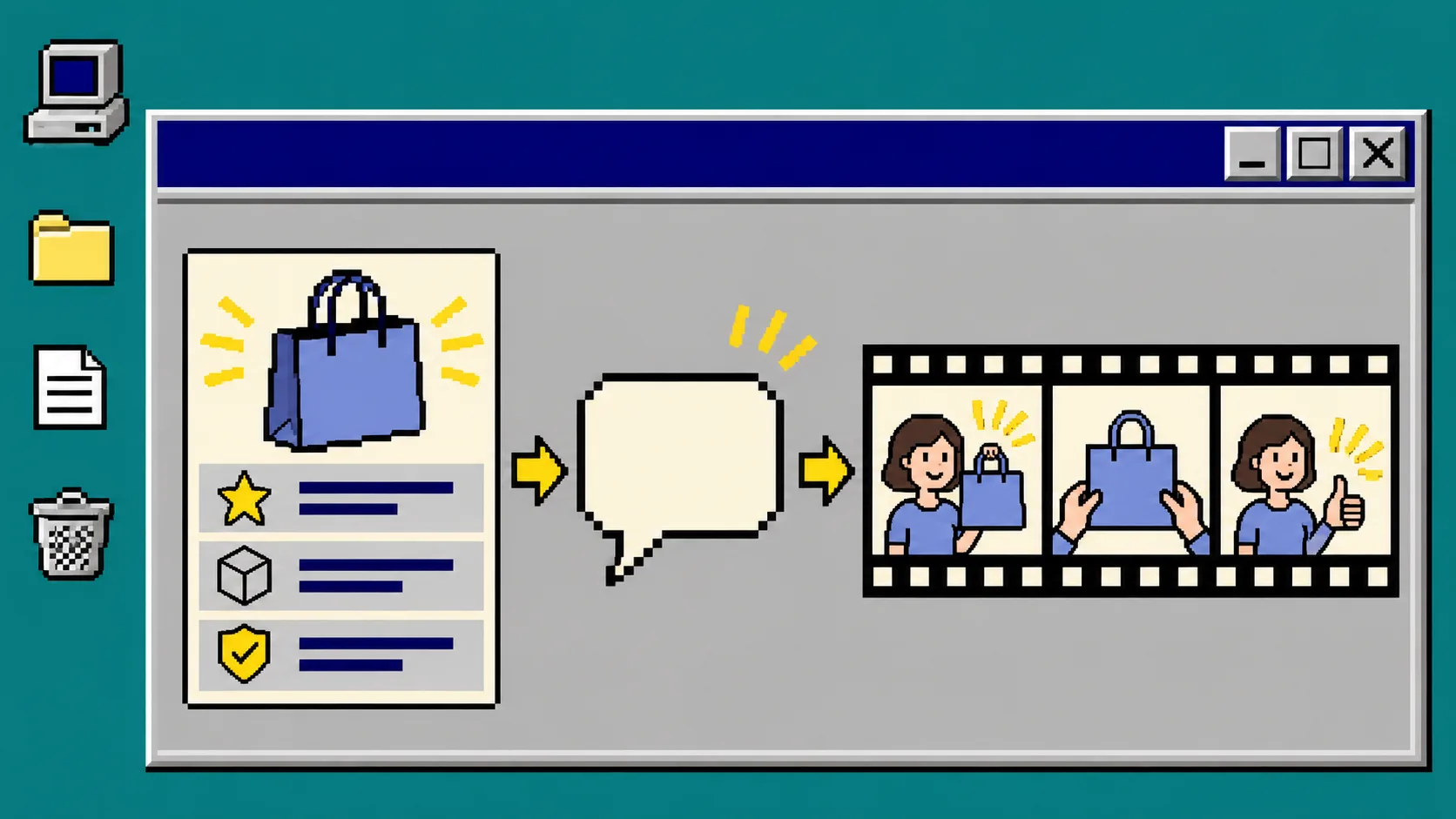
Open the product page, product record, and any approved instruction or specification sheet. Create a card with only five fields: the product name, one visible feature, one use case, one constraint, and one destination for the finished video. Write the constraint even when it feels inconvenient. A water bottle may be insulated, for example, but you should not say it is leakproof or dishwasher-safe unless your approved source says so.
Use this working format:
| Field | Example entry | Why it belongs |
|---|---|---|
| Product | 600 ml insulated bottle | Keeps the video anchored |
| Visible feature | Carry loop and screw lid | Lets the scene show something real |
| Use case | Desk-to-gym commute | Gives the script a situation |
| Constraint | Do not claim a temperature duration | Stops unsupported copy |
| Video job | Show the carry loop before checkout | Keeps the first version narrow |
This is not a substitute for product media. Shopify supports images, video, and 3D models as product media, and a theme must support video for it to display on the storefront; check that path before making a product-page video in Shopify’s product-media guidance. Keep confidential supplier files out of Shopify’s public Files area.
2. Choose one video job, not a general sales pitch
Pick a single viewer action. Good first jobs are “show how the lid opens,” “answer one sizing question,” or “show what arrives in the box.” Do not ask one 20-second clip to introduce the brand, prove quality, explain every variation, and close a sale.
If you are creating paid creative, this narrow job also makes the comparison cleaner. For hook testing, use this guide on testing Shopify UGC ad hooks before a shoot as the companion workflow. For a launch message, the more appropriate destination is a Shopify UGC video for a launch email.
3. Set up a scene that can show the claimed feature
In Supra UGC Maker, choose a preset or custom AI model, select an environment, and add the Shopify product when it fits the video. The current app listing says you can preview scenes before generation, then reorder, trim, update, and regenerate clips in one project. Use that preview to inspect the product reference before committing a segment.
Match the scene to the fact card. A desk scene is sensible for a bottle’s carry loop; a close product view is better for a zipper, texture, or included accessory. Avoid a scene that implies a use you cannot substantiate. A hiking setup can accidentally turn “water resistant” into “ready for storms.”

4. Write a script that separates observation from promise
Write three short beats: a hook, a demonstrated fact, and a next step. The app’s workflow supports a custom script, voice, and tone, so make the script specific rather than asking for “an authentic review.” AI-generated UGC-style creative can be a practical way to test a message, but it is not evidence of a real customer’s experience. Do not script a personal testimonial unless it is genuinely authorized and attributable.
For the bottle example, use this pattern:
- Hook: “Need a bottle that is easy to carry between work and the gym?”
- Demonstrated fact: “This version has a screw lid and a carry loop you can see here.”
- Next step: “Check the product page for the available colors and full care details.”
That last line is useful because it sends the shopper to the source of truth rather than inventing a claim. If the main job is a person’s question, pair this method with the earlier guide on creating a UGC video that answers one buyer question.
5. Generate a small first cut and review every visible detail
Generate one version first. Before creating variations, pause on the preview and compare it with the facts card. Check the product’s recognizable shape, count, packaging, color, and demonstrated action. Then listen for extra claims introduced by the script or voice.
Use this release check:
- Product match: Does the visible item look like the approved product reference?
- Claim match: Does every spoken or on-screen assertion appear on the facts card or product page?
- Context match: Does the scene avoid suggesting an unapproved use, result, or person’s endorsement?
- Destination match: Does the CTA match the intended ad, product page, or email?
- Accessibility match: Can a shopper understand the useful point without relying only on sound? Add accurate captions when the placement supports them.
Regenerate the smallest unit that failed. Supra UGC Maker’s listing describes editing and regenerating video segments, so there is no reason to preserve a flawed line merely because the rest of a project is usable. If you need several concepts later, see how to create Shopify UGC video variations without a shoot, but keep this original facts card unchanged as the control.
6. Put the approved video in one place first
Publish the first approved cut to the destination named on the card. For product pages, confirm the theme displays video correctly; for ads and email, check the export, landing-page match, and campaign approval rules. Do not use the same clip everywhere by default. A product-page video can show a detail slowly, while an ad often needs a tighter first second.
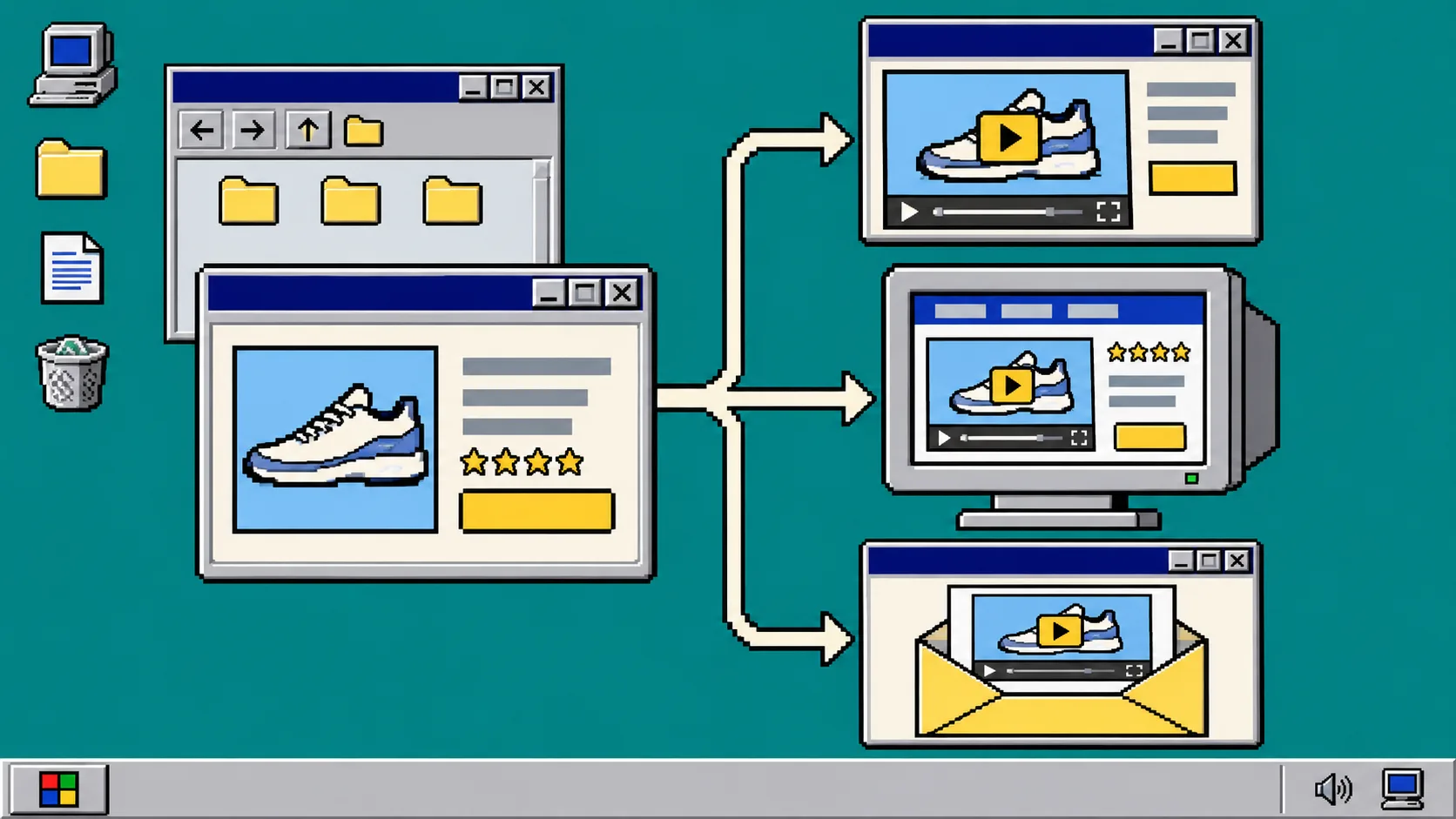
Save the project and its facts card together. The app supports reusable projects and scenes, which makes a verified scene a better starting point for a new color, hook, or destination than a blank prompt. That is also where a real creator may be the better choice: use a real creator when community trust, a personal account, or an actual testimonial is the point—not merely product explanation at scale.
Troubleshooting: the video sounds polished but feels unsafe
When a generated cut is attractive but questionable, do not try to repair it with a disclaimer after publishing. Return to the facts card. Delete the unsupported line, replace the scene that implies the wrong use, or make the video’s job smaller. For post-purchase education, the relevant alternative is a Shopify post-purchase setup video, where clarity matters more than a broad acquisition hook.
Wrap up
A product-facts card turns an AI UGC video from a vague creative request into a controlled product explanation: one feature, one use case, one constraint, and one destination. Start your first project in Supra UGC Maker, generate a single cut, and approve it against the card before you make variants.